Imagine: you have returned from a trip to Altai or an exciting tour of Cambodia, open the captured content on your laptop, and the image is rotated 90 degrees.
Or even turned upside down. It would be wasteful to delete such records. You can quickly correct the orientation of the video, and without compromising the original quality.

How to flip a video from a trip: correcting vacation footage
In this article, we’ll look at how to rotate a video on a computer, in a browser, and on a smartphone. Let’s look at 8 tools: from embedded applications to online services. If this doesn’t seem enough to you, then in a separate review we have collected even more ways to flip a video without losing quality.: 7 desktop programs and more with alternatives for each.
How to flip a video on a PC
The desktop editor is the most reliable tool for working with vacation videos. The files are processed locally, so you don’t have to wait for the download to the server and depend on the Internet speed. Even heavy 4K recordings shot somewhere on the volcanoes of Kamchatka are converted stably and without breaks.
Most of these programs run on any laptop, no powerful hardware is required. And the turning process itself is so simple that even someone who has never done installation can handle it.
Screen Studio
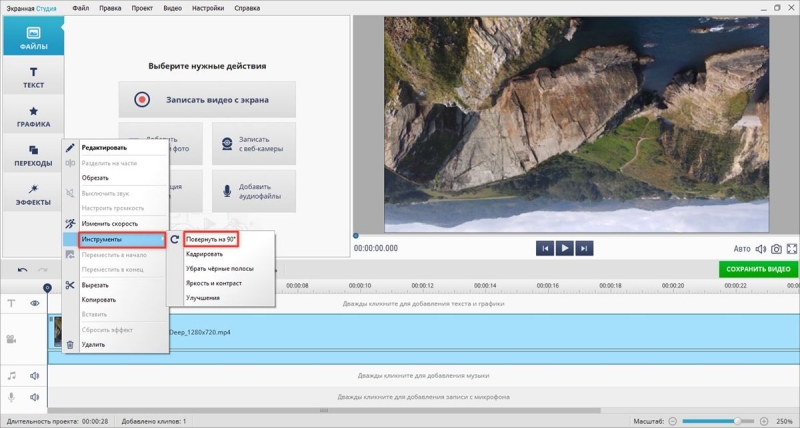
Screen Studio
Combines screen capture and full-fledged editing in one window. Supports saving in 30+ formats: MP4, AVI, MKV, MOV and others. Export is provided for YouTube, VK, and your website. The Screen Studio only works on Windows, but is compatible with all versions, including 7.
In addition to turning, you can crop long-drawn-out fragments, glue several recordings into one movie, overlay background music from the built-in collection, or record voice comments directly in the program. To create a travel video, built-in fonts for titles and captions to locations, a collection of cliparts and smooth transitions between scenes will be useful.
How to expand a video by 90 degrees and save it in this software:
- In the start menu, select “Edit Video” and click “Add video and photo”.
- Right-click on the timeline → “Tools” → “Rotate 90 degrees”.
- Save the project, specify the desired format and additional output settings: frame size and quality, FPS, file weight, and others.
Filmora
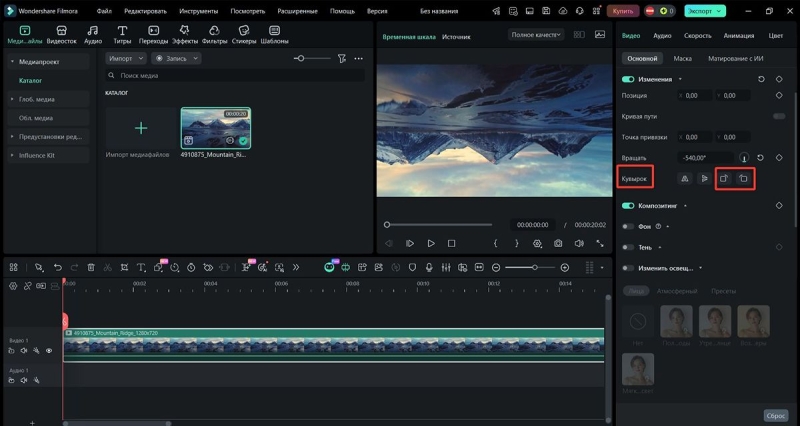
A Wondershare product with neural network-based features: automatic subtitles, background removal, intelligent tracking of objects in the frame. The editor allows you to expand the content not only by a fixed 90 or 180 degrees. The slider allows you to rotate the image at any angle up to 360°. This is useful if the camera was slightly tilted at the time of shooting, rather than completely turned over.
The AI-based “Auto Reframe” function automatically tracks the main object in the frame and adjusts the content to the required aspect ratio. It is useful when, after turning a vertical roller, it needs to be adapted to several platforms at once.
A way to rotate a video by 90 degrees and save it to Filmora:
- Create a new project, click Import, and drag the video to the timeline.
- In the panel on the right, go to “Video” → “Main” → “Somersault” and click on the buttons until you get the desired result.
- Click “Export”, select the format, resolution, and folder to save.
Photos of Windows
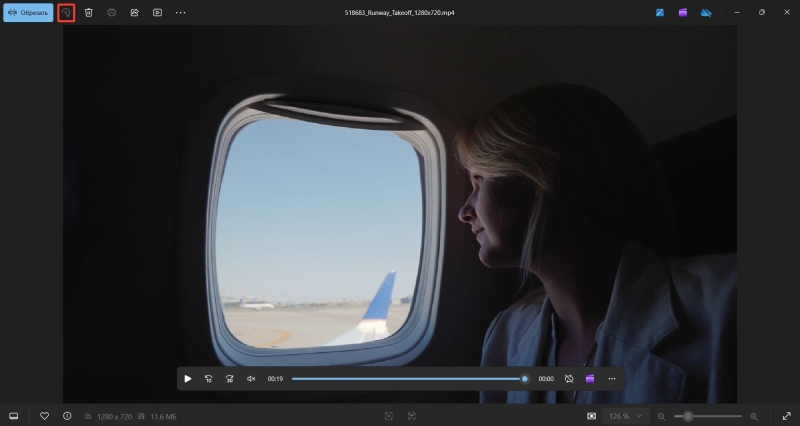
Photos of Windows
It was originally conceived as a regular photo viewer, but over time it has acquired basic editing capabilities: cropping, applying filters, and inserting text. It is quite a working option for a traveler who wants to quickly adjust the orientation of the clip right at the airport between transfers. The software supports most popular formats: MP4, MOV, AVI. Conversion is not necessary before uploading.
In the new builds of Windows 10 and 11, the rotate button for video can be locked. The thing is that Microsoft redirects users to its Clipchamp service. The flip is only available for a fixed 90° clockwise. You can’t do it counterclockwise, you need to click 3 times for the effect of one left turn.
How to flip a video on a computer using Photos:
- Right-click on the file and select “Open with” → “Photos”.
- Find the circular arrow icon on the toolbar.
- Press it until the frame is in the correct position. Then click “Save a copy”.
How to rotate videos online
It happens that you need to fix the orientation of the video right now, but there is no time or place to install the editor. For example, you’re sitting at someone else’s laptop in a hotel. Or there is simply no free space on the PC for third-party software.
Online services allow you to deploy recordings without programs directly in the browser. This is the easiest way when it comes to a short clip. But before you shoot another sunset on your phone and then expect to fix everything via the Web, take into account the nuances.
Of the advantages: This method works on any OS and does not require free disk space. Of the cons: The speed depends entirely on the availability of the Internet, and heavy files in 4K take a long time to download and can break off halfway. Some services also limit the size of the uploaded video content or add a watermark in the free version.
Veed.io
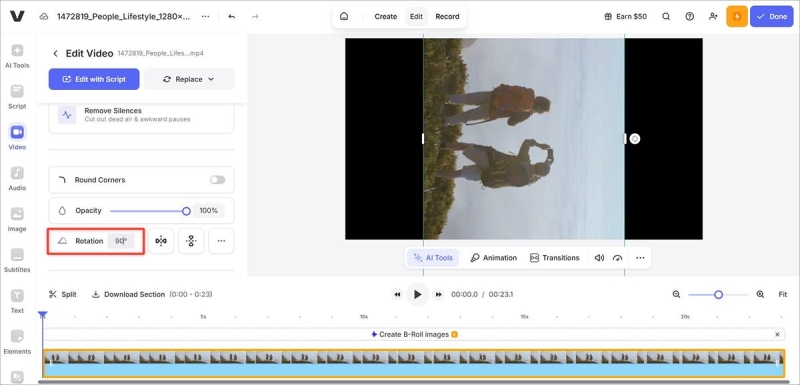
Veed.io
Allows you to expand the video by 90° or 180° directly in the browser window. The result is visible immediately in the preview: even before exporting, you can make sure that the frame position is correct. After correcting the orientation, the service immediately adjusts the aspect ratio to the desired platform. The maximum file size in the free plan is 250 MB. This is enough for a couple of minutes in 4K or 10-15 minutes in 1080p.
In addition to orientation correction, Veed.io It offers AI tools: automatic subtitles, background noise removal, voice acting generation. Free
